Qbik — student guide
All guides · Teacher guide · Eesti · Русский
Open https://qbik.nutilapsed.ee at home or at school. You need an internet connection and your school account; the school network is not required.
Screenshots show the English interface with sample teaching material. Your activities and cards will differ. Changing the interface language does not translate the cards.
Screenshots refreshed: 19 October 2026, using the R25c production build and synthetic data in a separate test database. Mobile views use browser emulation. The complete role/device review is still in progress; see verification status.
Sign in and find your activity
- Select English in Interface language.
- Sign in with your email or username and password. For self-registration, use your school email and a password of at least 12 characters.
- Open Activities. Open an assigned activity, or enter the teacher’s Activity code and select Join. A teacher’s link or QR code takes you to the relevant page.
- Check the title and study mode, then select Start studying. For a live game, wait for the teacher.
A class join code and an activity code serve different purposes. To join a class, open the classes section and use the class code supplied by your teacher. You can then open the materials shared with that class. An old link cannot restore revoked access; contact your teacher.
On a phone, navigation may be inside a collapsed menu. Scroll down long pages to reach the actions below an activity.
Your first Flashcards session
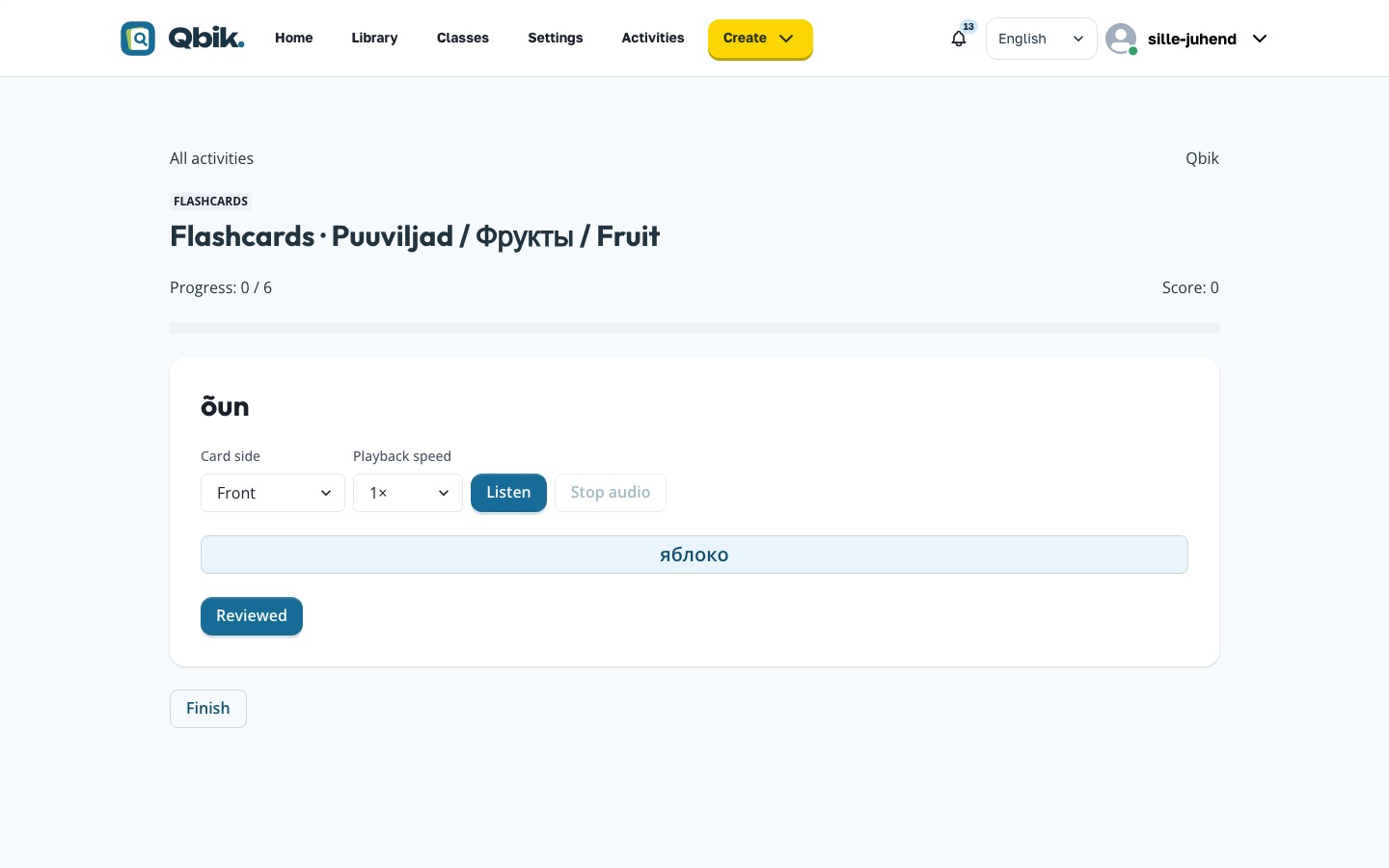
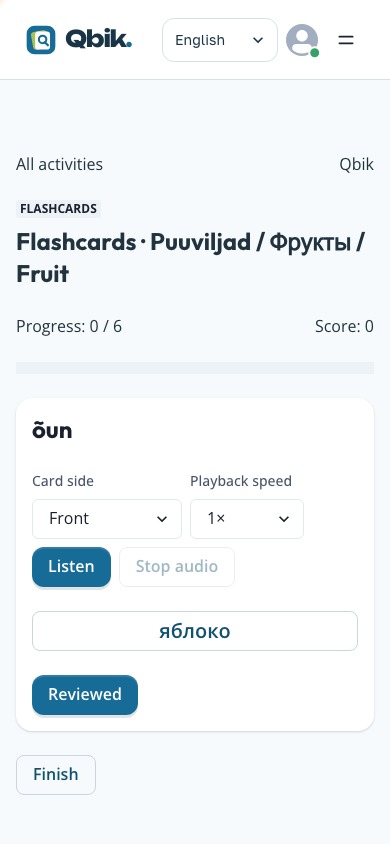
- Read the prompt and try to recall the answer.
- Select Flip card.
- Read the other side and select Reviewed. This button is unavailable until you flip the card.
- After confirmation, select Next. Watch the Progress count.
- Reviewing all cards ends the attempt automatically. Use Finish to stop earlier. Viewing a card is recorded separately from answering correctly.
For audio, select the front or back in the audio controls, choose Listen and adjust Playback speed if needed. Stop audio stops playback. Try to recall the answer yourself before listening to the back of the card.
Desktop:
Phone:
The ten study modes
Your teacher selects the mode when assigning the activity. Available answer types depend on the activity.
| Mode | What to do |
|---|---|
| Flashcards | Flip each card and confirm that you reviewed it. |
| Learn | Answer the question, read the feedback and continue. |
| Test | Type an answer, choose an option, select true/false or match items as requested. Finish the attempt and review your answers. |
| Match | Select the related prompt and answer. On a phone, tap them in turn; dragging is not required. |
| Blast | Answer while watching the remaining time and game pace. |
| Blocks | Alternate between placing pieces and answering questions. Select a piece, then a board cell; after answering and reading feedback, select Next. |
| Live — individuals | Join, wait for the teacher to start, then answer during the shared game. |
| Live — teams | Check your team number. A team result is not your individual accuracy. |
| Spell | Select Listen, type what you hear and submit your answer. Replay the audio when needed. |
| Diagram | Select the point on the image that answers the question. |
If audio is unavailable, retry playback or ask your teacher for an activity without audio. Do not guess solely because the sound failed.
Results and another attempt
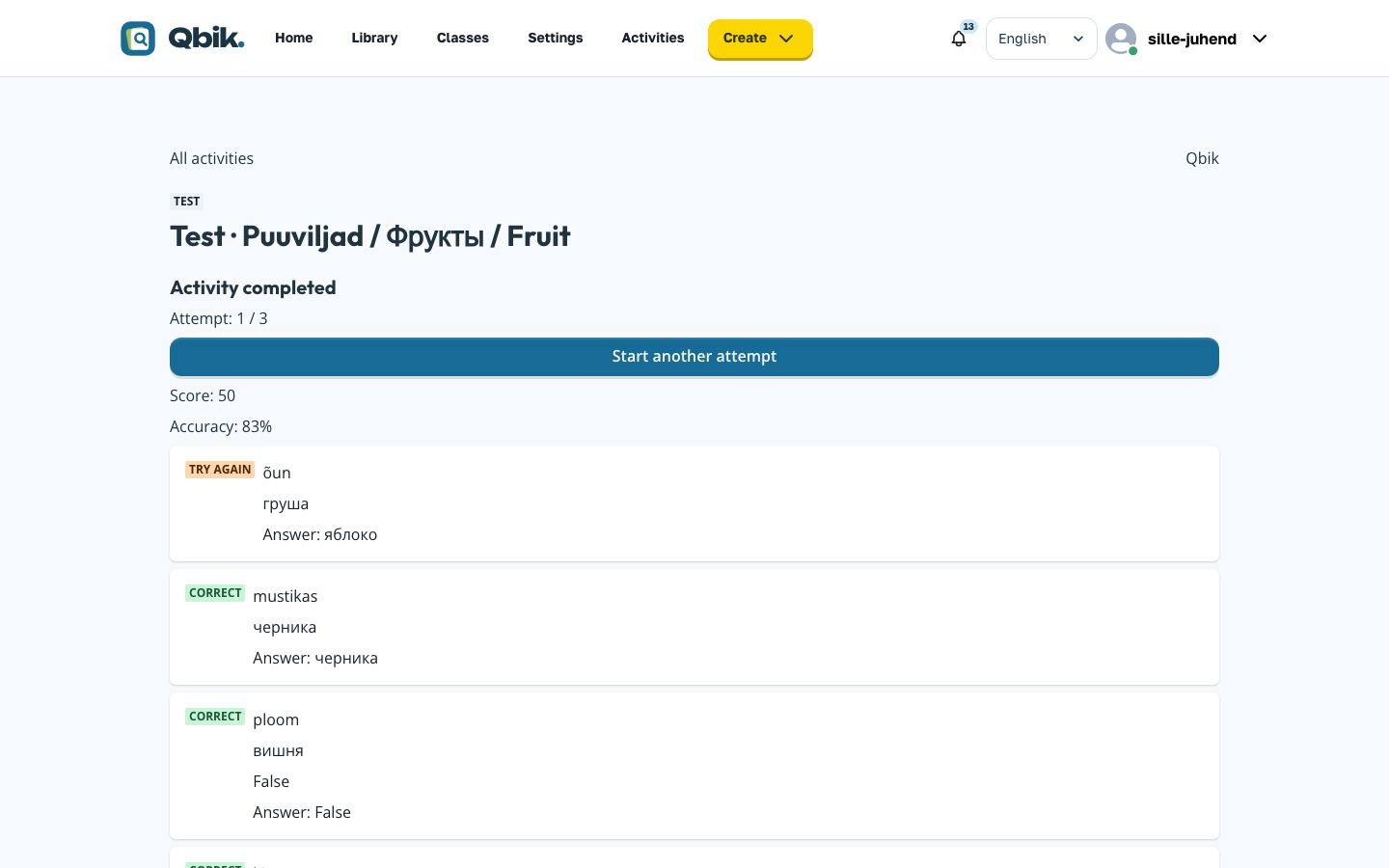
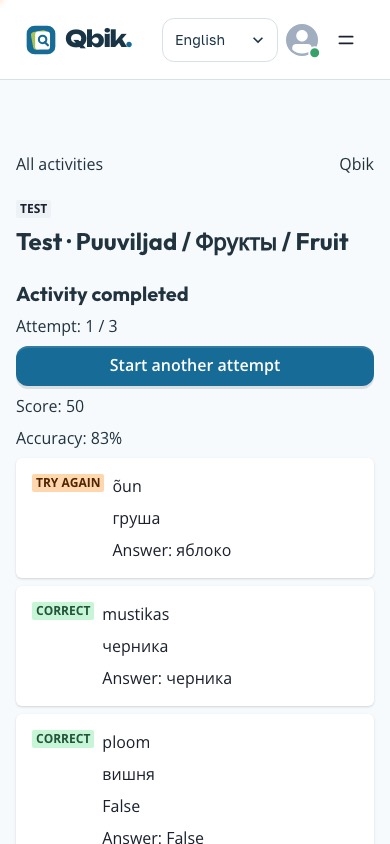
After finishing, open Answer details and Attempt history. Another attempt is available only while the activity is open and your teacher permits more attempts. Use Start another attempt when it is shown.
A completed test on desktop:
The same result on a phone; scroll to see the remaining answers:
In History and difficult cards → My results, choose the period and any other filters, then select Apply filters. Download attempts (CSV) and Download card summary (CSV) cover the whole filtered period, not just the visible page.
First-answer accuracy measures whether you answered correctly the first time. A later correction does not erase the first mistake. Skipped, viewed-only and unanswered cards are separate counts. Game points are not school grades. You cannot open other students’ private results.
If your teacher assigns practice from mistakes, open that new activity. It does not replace the original result. Check notifications for links to newly available activities and materials.
Personal study material
Students can create personal sets and copy accessible material. A copy can be edited independently; it does not change the original or your activity results. Personal authoring does not grant class management, school assignment or other students’ report access. For a teacher’s assignment, use the teacher’s link rather than a similar personal copy.
Temporary guest access
If your teacher gives you a guest link or QR code, open it and follow the guest form. Wait for teacher approval when required. Guest access is temporary and belongs to that activity; it does not replace a school account. Ask the teacher to renew expired or revoked access.
When something goes wrong
| What happens | What to do |
|---|---|
| This activity has not started yet | Wait until the start time or check the dates with your teacher. Start studying is unavailable until then. |
| This activity is closed | The activity has ended. Ask your teacher about another activity. |
| A link is unavailable | Check that you are signed into the right account and belong to the required class. |
| An action is not confirmed | Select Retry on the open page and wait. Do not submit repeatedly. |
| There is no new-attempt button | The time window or attempt limit may have ended. Ask your teacher. |
| You must sign in again | Sign into the same account and reopen the activity. Do not assume an unconfirmed answer was saved. |
On a shared computer, sign out through the account menu and wait for confirmation. Closing the tab is not the same as signing out. The next student should use their own account.