Qbik — teacher guide
All guides · Student guide · Eesti · Русский
Use https://qbik.nutilapsed.ee at home or at school. Access is for school users; it does not require the school network.
The live site runs R25c. The import/export features introduced in R25b remain available. Screenshots show sample material; your classes and sets will differ.
Editorial review: 19 October 2026. The teacher screenshots were refreshed on 19 October after the shared navigation fix, at 1440×900 and 390×844. They show a development build. The complete role/device review is still in progress; see verification status.
Get started
Choose English, then sign in with your email or username and password. Self-registration with a school email creates a student account; a school operator grants the teacher role. If school management controls are missing, ask the operator to check your role. Ordinary teachers cannot grant teacher roles to others.
On a phone, open the collapsed navigation menu. The usual workflow is: prepare a set → save and publish a version → share material or assign an activity → review results. Sharing material gives access for independent study; an activity specifies a mode, time window and attempts.
Prepare a set and its cards
- For a new set, choose Create → Study set, enter its title, languages and cards in the initial editor, then select Create. Open the resulting set for editing and choose Open versioned editor. If the conversion page shows that button again, select it to open the draft. An existing versioned set opens directly in the versioned editor.
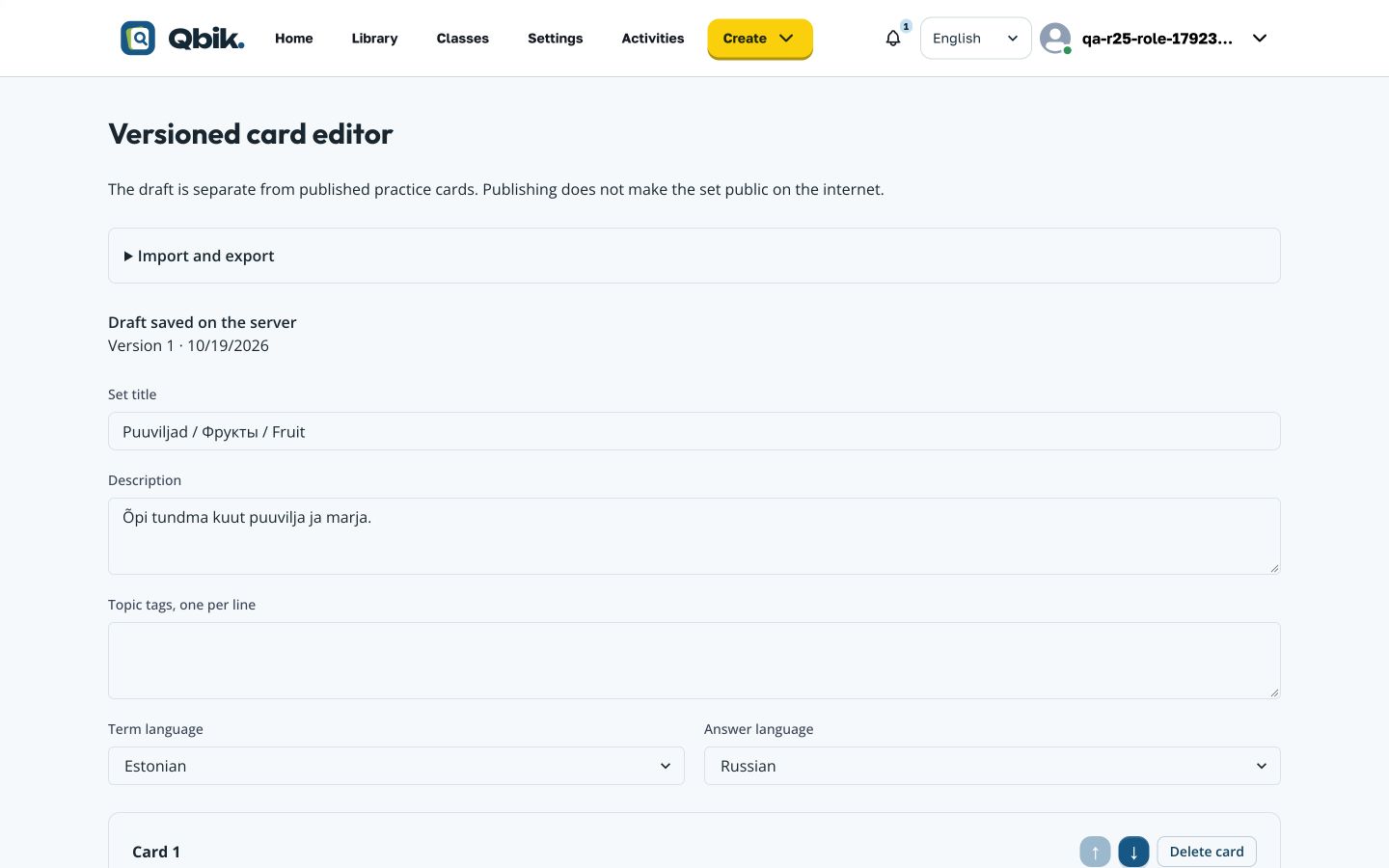
- Enter the Set title, description, term language and answer language. Interface language does not translate the content.
- Add cards with a Term and Answer; format text when helpful. Move cards up or down to change their order. Use card pagination for longer sets.
- In Answers and card settings, add accepted alternatives, incorrect choices, a grading profile, practice directions and answer types. Case, whitespace and punctuation settings affect marking; choose them carefully for code and formulas.
- Add explanations, examples, tags, sources and a Private author note as needed. The private note is for the author, not students.
- Select Save draft and wait for Draft saved on the server.
- Select Publish new version and confirm. Saving and publishing are separate actions. Publishing does not itself make a set public.
Each card side allows up to 1,000 characters. A set can contain up to 2,000 cards within the total size limit. Divide large material into topics.
Saved draft and published version on desktop (the import section belongs to the R25b update):
The editor on a phone; cards are below the set fields:
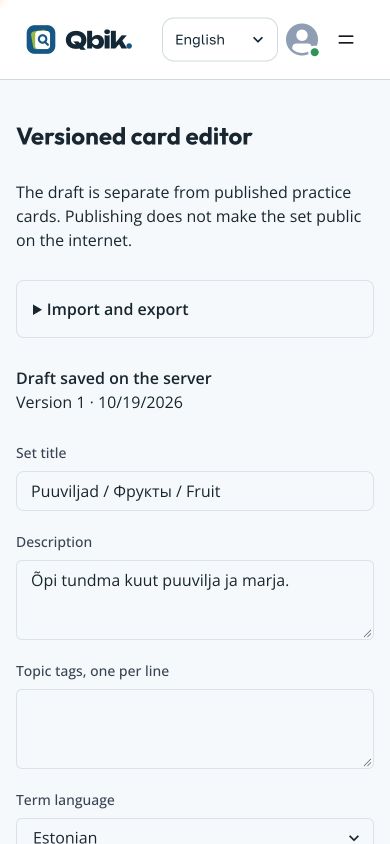
You can edit the draft while retaining the published version for study. Open Published versions to preview a version; author preview does not create a student attempt. An assigned activity keeps its content snapshot, so later edits do not rewrite earlier results.
Images, audio and diagrams
Use Add or replace image on a card: JPEG, PNG or WebP, up to 5 MB. Add an image description. You can remove an unwanted image.
Use the audio controls to upload a supported file and listen to the result. For voice recording, allow microphone access, record and check playback before publishing. Recording depends on the device and browser permissions. Wait for confirmation before treating an upload or recording as saved.
For a Diagram activity, add the image, select a term and mark its location on the image. Check the points before assigning the activity.
Find, copy and combine material
Search available sets using a query and the available filters. Clear unnecessary filters when nothing is found. Search respects permissions and does not expose other people’s private sets.
Make a copy creates a separate private draft; editing it does not change the original. Read any media warning before confirming. To combine material, select accessible source sets, review the cards and duplicates, then create the combined private draft. Check and publish it separately. Student results and class access are not copied with the cards.
For paper work, use the set’s available print/preview action and check the pages in the browser’s print window.
Import Quizlet text — available now
- Prepare text from your own set: term and answer separated by a tab, one card per line.
- In Qbik, use the Quizlet import action in the create menu. Enter a title and languages, then paste the text or select a UTF-8 text file.
- Choose the matching format and separators. Plain text preserves literal quotation marks; quoted CSV/TSV needs its corresponding format.
- Preview the cards, correct the rows and explicitly confirm any duplicates you wish to keep.
- Save a private draft, review it in the editor and publish it separately.
This path transfers the two text sides, without images or audio. Do not import the table header as a card. Limits are 2,000 cards and 5 MB for both source text and resulting draft.
Expanded transfer — R25b update
The R25b release adds a collapsible Import and export section to the editor. R25b is now available on the live site.
| Format | Best use | Limitations |
|---|---|---|
| CSV/TSV | Text, alternative answers, explanations, examples, tags and sources | Does not transfer formatting, media, grading rules or private notes. |
| JSON | Full text and set settings | Media references do not include the files or permission to use them. |
| Qbik ZIP archive | A set with supported images and audio | Use an archive exported by Qbik, not an arbitrary ZIP of files. |
For CSV/TSV, select a file or paste text, choose the delimiter and header setting, then map the columns. Term and answer are required. For alternatives and tags, select JSON arrays or an explicit list separator. Review the unused columns and prepare the preview. An invalid row blocks the whole import; correct the source and preview again.
For JSON or ZIP, select the file and inspect its preview. For JSON, use Create a new private draft or Append to this draft. For ZIP, use Create set from archive or Append archive to this draft. Appending preserves the current set’s title and languages; review the new cards. Duplicates are not silently removed: read the warnings and confirm when you intend to keep them. After appending, confirm that the draft is saved; publishing remains a separate action.
Export uses the saved draft; save your changes before downloading JSON, CSV or ZIP.
Text transfer is limited to 5 MB. An archive is limited to 25 MB, 64 media files and 2,000 cards. CSV export uses commas and JSON arrays for lists. An apostrophe used to protect potential spreadsheet formulas remains literal when reimported; review affected fields.
A full JSON/ZIP export may contain private author notes, so review the content before sharing the file. If the result is uncertain, retry the same action in the open window. After reloading, check existing drafts before starting a new import to avoid an extra copy.
Example: bring in a two-column table
- Open your own set’s versioned editor and expand Import and export → Import CSV/TSV table.
- Paste this example into Table text — correct errors here (or select a UTF-8 file):
front,back
õun,яблоко
pirn,груша
- Enter the imported set’s title and languages in the fields that appear after entering text. Set Column separator to comma and enable First row contains headers. Map
frontto Question andbackto Answer. Leave other fields unassigned. For a TSV file, use the tab separator instead. - Select Prepare preview. Scroll below the table section to review the prepared title, card count and pairs. Preparing the preview has not saved or published a set.
- If a duplicate warning appears, select Keep duplicate questions and answers only if you want those repeats. To keep your original set separate, select Create a new private draft. To add these cards to the open set, select Append to this draft, then Save draft. Check the resulting cards before Publish new version.
Export and restore a saved set
- Save the draft and wait for Draft saved on the server.
- Expand Import and export. Use Download CSV for a table, Download JSON for text/settings, or Download ZIP in Archive with images and audio for a set with its media. Check that the browser completed the download.
- For JSON, select Qbik JSON file, then Check file. Read the preview before Create a new private draft or Append to this draft. A JSON file with media references cannot create a standalone set; use ZIP for media portability.
- For ZIP, select Qbik ZIP archive. Preview is prepared after file selection; inspect the card/media counts and pairs. Use Create set from archive for a separate draft, or Append archive to this draft for the current set. ZIP append saves on the server and reloads the editor; verify the saved state and imported media.
- CSV/JSON append changes the open draft. Select Save draft and wait for the saved confirmation before leaving. After any import, publishing is a separate action. Confirm duplicate retention only when those repeats are intentional.
Classes and shared materials
- Open Classes → Create a new class. Enter the class name, description and School year in the form
2026/2027, then select Create new class. Use Edit class to change these details later. - Give students the join code, or add registered accounts using their exact usernames. For Roster CSV, select Preview roster, correct any row errors and check the total before Confirm roster import. Large previews show the first 50 students; all validated rows will be added.
- Create groups within the class and add other existing teachers when needed.
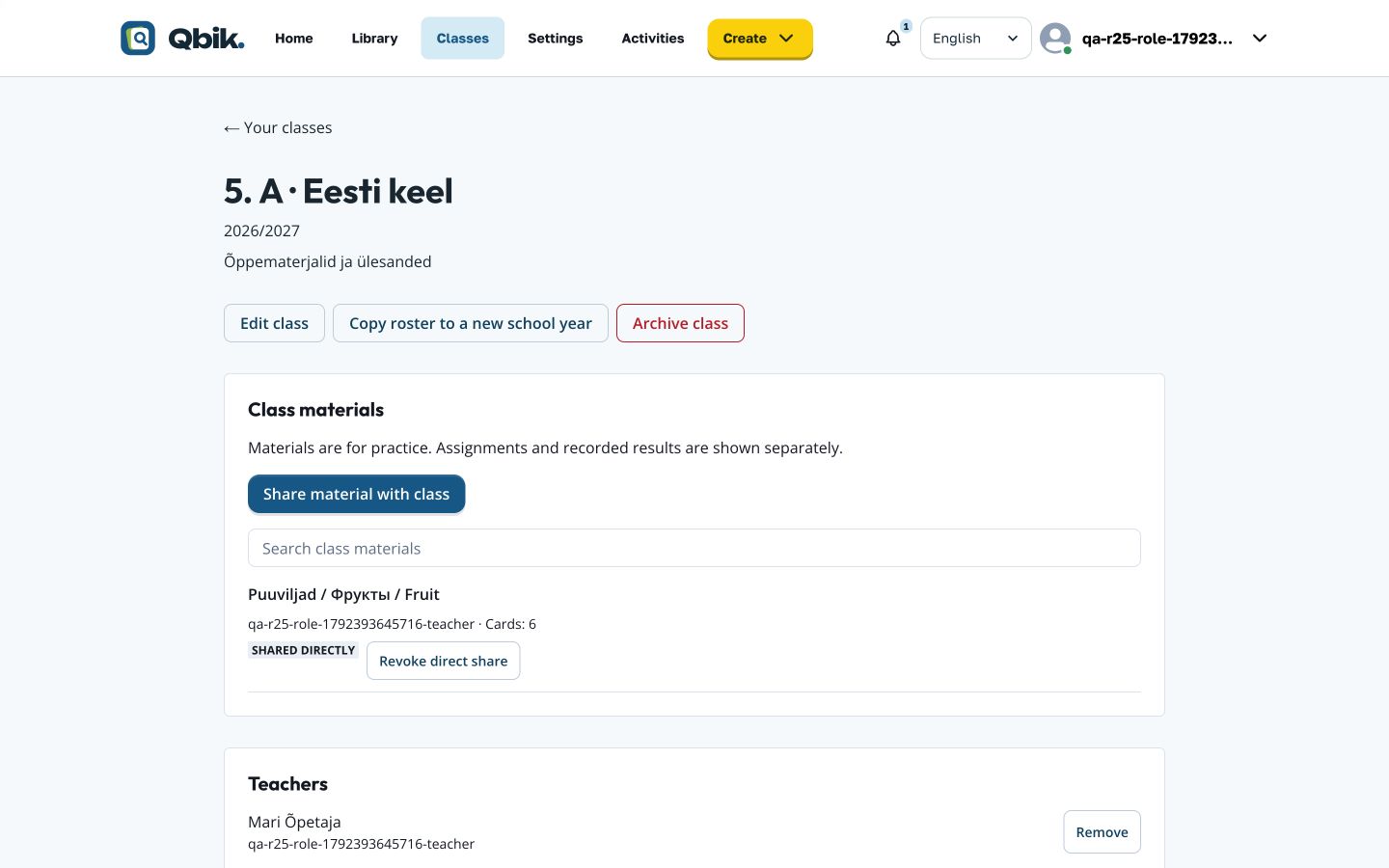
- Open the class and select Share material with class, choose a set, inspect the preview and confirm sharing. When sharing a folder, review its included material too.
- Check that the material appears in the class. Shared directly identifies a direct share; Revoke direct share removes that particular route of access.
A class with shared material on desktop:
The same page on a phone:
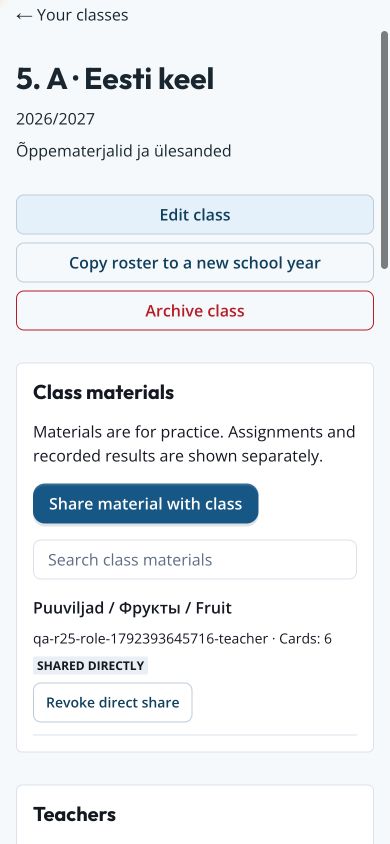
If a set is shared through several routes, check the remaining shares after revoking one. Do not copy private author notes into student material.
In the class page, find Groups and join codes and the card for all students or the required group. Use Create join code if no code exists, or Rotate code to replace it. Share the currently displayed class code with the intended students. Rotating keeps current members and makes the old code unusable for joining. A removed member cannot simply rejoin with the old code. Archiving a class retains its history but ends active work and material access. For a new school year, transfer the roster into a new class; old activities and results remain with the earlier class.
Assign an activity: ten modes
- Open Activities → Assign activity and select the published study set. If your latest cards are missing, save and publish them in the versioned editor first.
- Select a class, or Share by link for access by activity link/code. Enter a title so students can identify the assignment.
- Set Start, End, Number of cards, Answer with and Allowed attempts. Check that the end is after the start.
- Choose a study mode and review its extra controls. For Test, select the requested answer types; for Diagram, prepare the image and points.
- Select Create activity once and wait for the activity page. Check its title, mode and time window before sending the code, link or QR. Starting a Live game is a separate teacher action.
| Mode | Preparation |
|---|---|
| Flashcards | Material for reviewing both sides; viewing is not proof of a correct answer. |
| Learn | Cards and accepted answers for practice. |
| Test | Select written answers, multiple choice, true/false and/or matching. |
| Match | Clear question–answer pairs. |
| Blast | Set asteroid speed and check question readability. |
| Blocks | Questions for stages alternating with piece placement. |
| Live — individuals | Prepare the shared game and its duration. |
| Live — teams | Also set the number of teams. |
| Spell | Confirm that the necessary audio plays. |
| Diagram | Add the image and mark term locations. |
Share the activity’s code, link or QR. For Live, wait for participants in the lobby and select Start game; use End activity when needed. Time and attempt limits are enforced by the server; leaving a tab open does not extend access.
Guest participation
In the activity’s guest controls, set the access period, participant cap, late-join option, approval requirement and guest-result retention period. Enable access and share the issued guest code or QR. Approve waiting participants when approval is required.
You can revoke one guest or close all guest access. Rotating the code changes the grant; do not assume previous permissions remain valid. Guest results are temporary and separate from school-account results. A guest alias does not verify a student’s identity.
Results, mistakes and targeted practice
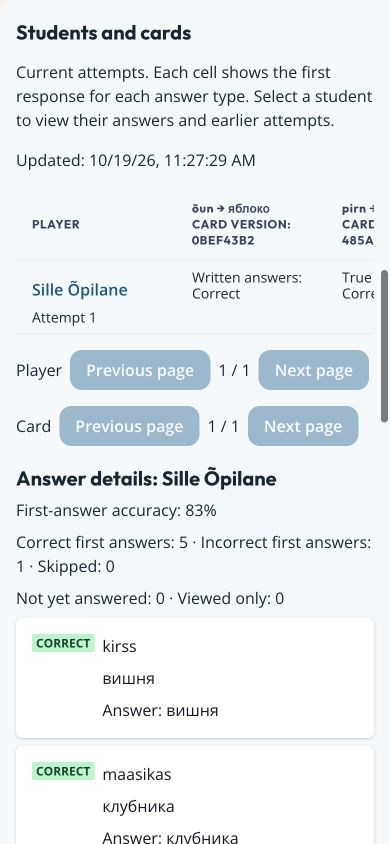
Open Results in an activity. Select a student to inspect answers and Attempt history; select an attempt number to compare first, latest and best results. Students and cards shows first responses by question type.
The teacher report on desktop:
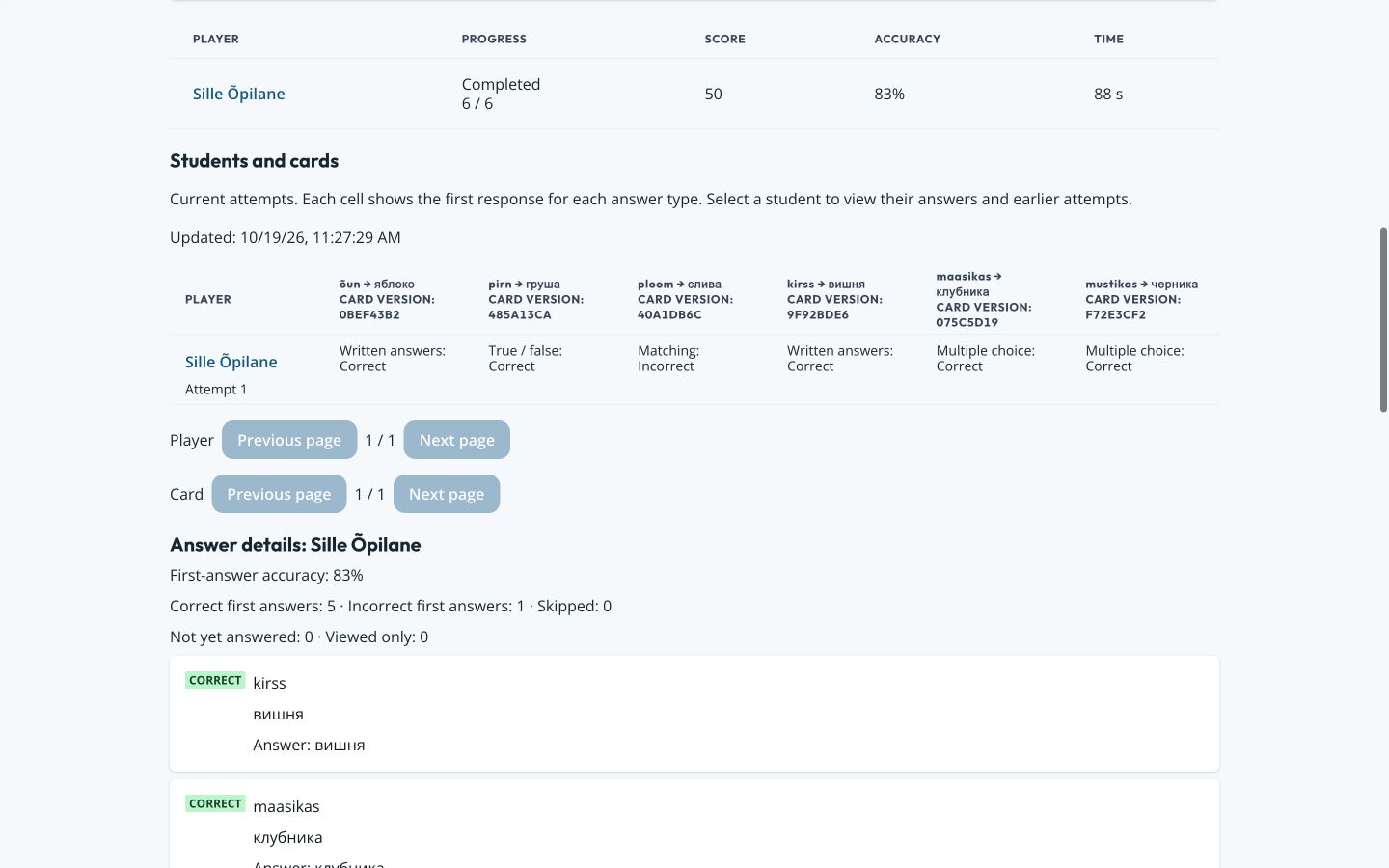
On a phone, swipe horizontally within a wide table to see its remaining columns:
For an overview across activities, return to Activities, open History and difficult cards, and select My classes in the report selector. Choose the period, class, study mode, answer direction and content version, then select Apply filters. Changing a filter alone does not apply it. Download attempts (CSV) and Download card summary (CSV) export the entire selected period. CSV times are UTC and column names are English. Blank accuracy means not applicable, not zero.
Points are not grades. Viewed-only does not mean correct. A first mistake remains recorded after correction. Team results are excluded from individual card mastery statistics.
To assign targeted practice, select the student, open Attempt history and select a completed attempt by its number. Then select Create practice from mistakes. This action is unavailable for guests and team-mode attempts. Choose cards, optionally include skipped cards, then set a title and deadline. Only that student receives the new activity; the original results and content remain unchanged.
Keep your work safe
When a draft conflicts, review the server draft before choosing which text to retain. Download your draft before replacing it if you need both versions. Retry an unconfirmed action in the same window instead of starting another parallel action.
Archive set revokes class access while retaining earlier versions. Restore as private set does not automatically restore previous sharing; configure access again.
On a shared computer, sign out through the account menu and wait for confirmation. If access from home fails, report the page address, time and error text. School Wi-Fi is not required.